Scientific Rationale#
The emergence of all-sky surveys and the increasing number of real-time gravitational-waves alerts have created a pressing need for reliable scheduling frameworks. These frameworks must efficiently coordinate follow-up observations across a range of telescopes and missions, both on the ground and in space. To meet this need, we developed |M⁴OPT| : an open-source toolkit designed to optimize the scheduling of follow-up campaigns.
Why is scheduling so challenging?
gravitational-waves alerts often have large localization uncertainties—sometimes hundreds of square degrees—so astronomers need to decide how to balance sky coverage (looking at as much area as possible) versus depth (spending enough time on each field to detect faint signals). Moreover, electromagnetic counterparts to gravitational-waves events can evolve rapidly, so observation plans must be generated quickly and efficiently.
Mixed Integer Linear Programming (MILP)
\(\mathrm{M^4OPT}\) addresses this by formulating the scheduling task as a Mixed Integer Linear Programming (MILP) problem. This approach dynamically allocates observation time across fields and optimizes the exposure time for each one, maximizing the overall probability of detection. Unlike fixed or manually tuned schedules, this method adapts to the conditions of each field, such as:
background noise and background light (including natural sky brightness from the galaxy, zodiacal light, and instrumental effects; for ground-based telescopes, this also includes the increased sky brightness during astronomical twilight—just before sunrise or after sunset),
distance uncertainty,
instrumental sensitivity.
Important
In addition, \(\mathrm{M^4OPT}\) takes into account practical telescope constraints, such as Sun and Moon exclusion zones, dynamic field-of-view, and slewing time between fields.
This leads to a much more efficient use of telescope time and increases the chances of detecting faint or distant transients.
MILP Model and Constraints
The MILP optimization considers several real-world constraints, including:
Fixed latency between the alert and when observations can start;
Field-of-Regard (FoR): the sky region accessible to the instrument, evolving over time due to the instrument’s motion and orientation;
Slewing delays: time needed to move between different sky positions;
Exposure time limits for each field (minimum and maximum).
Detection probabilities are computed using synthetic photometry models, taking into account extinction, background light (zodiacal, galactic, etc.), instrument sensitivity, and the distribution of possible source magnitudes (for example, a Gaussian for kilonova absolute magnitudes). This modeling ensures realistic and robust predictions for observation planning.
Run process#
How to get your telescope observation plan ?
Here is how you can run your first test with \(\mathrm{M^4OPT}\) using the ULTRASAT mission.
With ULTRASAT telescope
The simulation requires two inputs:
./14.fits — the event skymap with localization probabilities
./14.ecsv — the output file where the schedule will be saved
Open your terminal and run the following command:
m4opt schedule ./data/14.fits ./data/14.ecsv \
--mission=ultrasat \
--skygrid=non-overlap \
--bandpass=NUV \
--absmag-mean=-16.0 \
--absmag-stdev=1.3 \
--exptime-min='300 s' \
--exptime-max='14400 s' \
--snr=10 \
--delay='15min' \
--deadline='24hour' \
--timelimit='2hour' \
--nside=128 \
--jobs 0 \
--cutoff=0.1
This command launches a scheduling simulation for the ULTRASAT mission. You need to provide the main parameters, including the mission name, skygrid configuration, and observation settings.
The output file (e.g.,
14.ecsv) will contain the observation schedule.The simulation expects an event skymap file (usually a
.fitsfile), which gives the localization probability of the event.
Note
Missions like ULTRASAT support multiple skygrid models; use --skygrid to select (non-overlap and allsky).
Other missions (e.g., ZTF, UVEX, Rubin) support only a single skygrid and do not need this option.
See the full list of parameters in the CLI guide.
Output and Visualization
Understanding the Output
The generated ECSV file (e.g. 14.ecsv) contains your observation plan, including:
Pointing coordinates,
Exposure times,
Slew (repositioning) times,
Visit (by default: two visits per field),
All relevant metadata.
Visualizing the Schedule
You can create an animation or a PDF showing the planned observations:
m4opt animate ./data/14.ecsv 14_MOVIE.gif --dpi 300 --still 14_MOVIE.pdf
The animation produces:
14_MOVIE.gif— an animation of the schedule14_MOVIE.pdf— a static pdf, of the observation sequence.
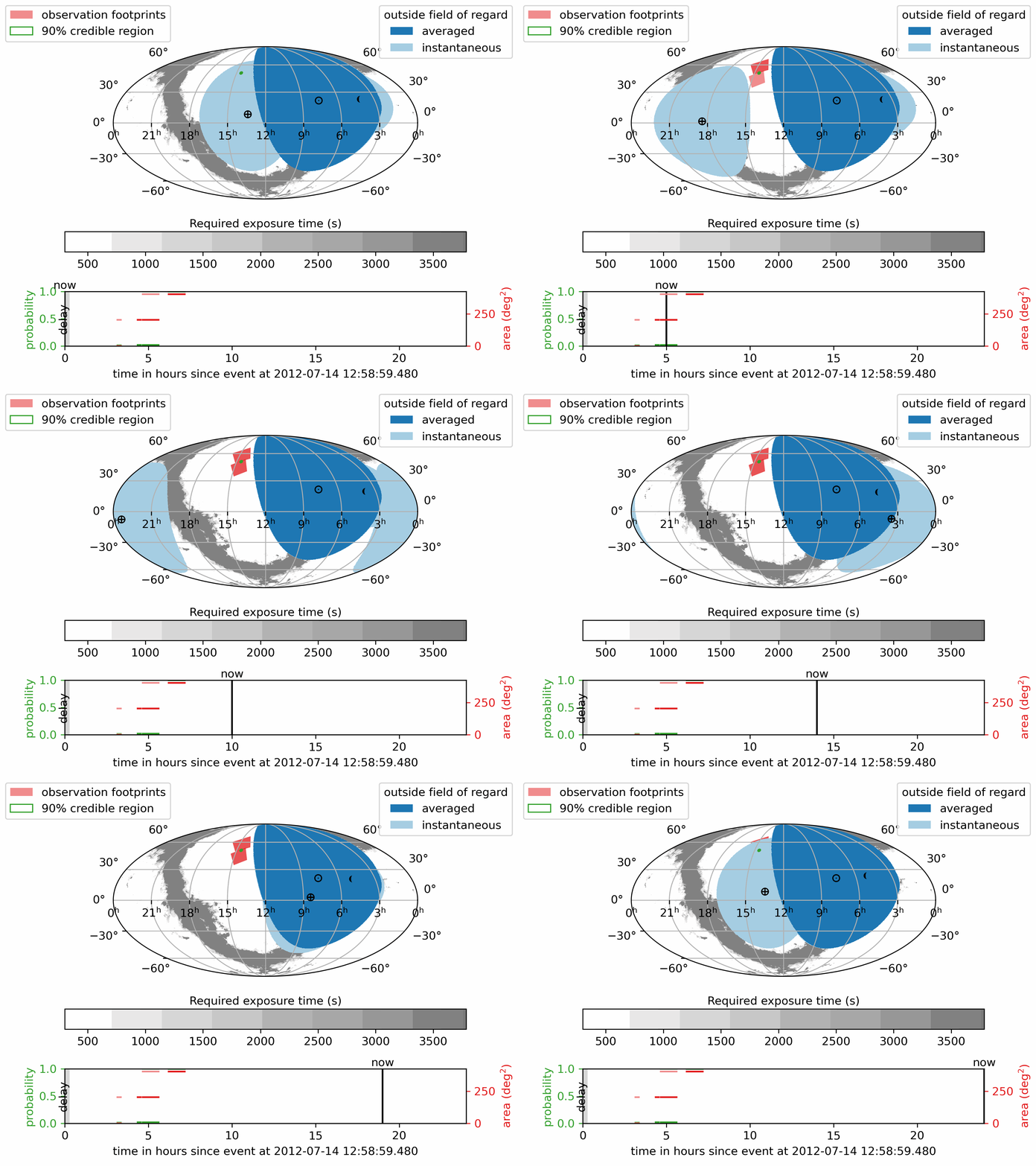
Download or view the static PDF:
The pink regions show the scheduled observation pointings the footprints.
The green outline marks the 90% credible region of the GW localization.
The deep blue areas are always outside the telescope’s Field of Regard; the light blue areas are temporarily out of view.
- The lower panel shows how the detection probability and covered sky area accumulate over time, with different colors indicating
the number of times a region has been observed.
The symbol \(\oplus\) shows the direction of the center of the Earth (sub-Earth point) projected onto the sky.
The symbol \(\odot\) shows the direction of the Sun (sub-solar point) on the sky.
See also
ligo.skymap plotting documentation for more details of marker conventions.
Note
This is a projection of the sky, not a direct image of the Earth or the Moon. The features shown correspond to sky coordinates, not to physical locations on Earth or lunar positions.
ECSV file inspection
You can load and inspect a schedule file using Astropy:
Retrieve observation coordinatesfrom astropy.table import QTable from earthorbitplan.utils.path import get_project_root root = get_project_root() output_file = root / "data" / "14.ecsv" plan = QTable.read(output_file, format="ascii.ecsv") obs = plan[plan["action"] == "observe"] display = obs["start_time", "duration"] display["ra"] = obs["target_coord"].ra display["dec"] = obs["target_coord"].dec display.round({'duration': 1, 'ra': 2, 'dec': 2}) print(display)start_time duration ra dec s deg deg ----------------------- -------- ------ ----- 2012-07-14 16:04:59.480 1080.0 221.14 58.26 2012-07-14 17:17:11.127 1080.0 221.14 58.26 2012-07-14 17:35:59.480 3786.3 218.06 43.89 2012-07-14 19:09:05.819 3786.3 218.06 43.89
ECSV Metadata Extraction
Load a schedule, extract key metadata and visit counts:
from astropy.table import QTable
from earthorbitplan.utils.path import get_project_root
root = get_project_root()
output_file = root / "data" / "14.ecsv"
plan = QTable.read(output_file, format="ascii.ecsv")
objective = plan.meta.get("objective_value")
best_bound = plan.meta.get("best_bound")
status = plan.meta.get("solution_status")
time_used = plan.meta.get("solution_time")
visits = plan.meta.get("args", {}).get("visits", 2)
n_obs = len(plan[plan["action"] == "observe"])
unique_fields = n_obs // visits
print("Schedule metadata:")
print(f" • Objective value: {objective:.4f}")
print(f" • Best bound: {best_bound:.4f}")
print(f" • Solver status: {status}")
print(f" • Solution time: {time_used}")
print(f" • Unique fields observed: {unique_fields}")
Schedule metadata:
 • Objective value: 0.9483
 • Best bound: 0.9483
 • Solver status: integer optimal solution
 • Solution time: 29.20644998550415 s
 • Unique fields observed: 2
Metric |
Value |
|---|---|
Objective value |
0.9483 |
Best bound |
0.9483 |
Solver status |
integer optimal solution |
Solution time (s) |
29.21 |
Unique fields observed |
2 |
Statistics and predictions#
Filtering from the CBC events
Here is how to filter BNS and NSBH events from the Observing scenarios. The following command will download the specified ZIP file, extract its contents, and filter the events based on your chosen criteria.
Download data from Zenodo
Zenodo API
We have written a script for interacting with the Zenodo API, facilitating the download of files based on a DOI. This class provides functionality to retrieve the latest version DOI associated with a provided permanent DOI, and subsequently download the corresponding file from Zenodo.
You can easily download another dataset from Zenodo by replacing the permanent_doi
with a new one.
Download the gravitational-waves simulation data from the Zenodo database
$ earthorbitplan.scenarios.zenodo_downloader --permanent-doi 14142969 --file-name runs_SNR-10.zip
$ earthorbitplan.scenarios.zenodo_downloader --config ./earthorbitplan/config/params_ultrasat.ini
Note
For manual processing, see the source Zenodo dataset: https://zenodo.org/records/14585837
Filter out the BBH events
Unpack the zip file and filter the CBC events
This process automates the unpacking, filtering, and conversion of injection datasets (e.g., Farah / GWTC-3) from Zenodo ZIP archives. It processes event tables and associated localization files for specific observing runs (e.g., O5, O6), and outputs filtered ECSV tables and organized FITS files.
The output will include an ecsv file (observing-scenarios.ecsv) recording gravitational-waves` parameters such as mass, distance, and sky localization area.
It will also copy the FITS files containing the gravitational-waves skymap probabilities into the directory specified by --skymap-dir (by default /data/skymaps) for each run.
These outputs are useful for scheduling with \(\mathrm{M^4OPT}\) and the statictric productions.
$ earthorbitplan.workflow.unpacker --zip runs_SNR-10.zip --subdir runs_SNR-10 --runs O5 O6 --detectors HLVK --data-dir ./data --mass-threshold 3 --skymap-dir skymaps
$ earthorbitplan.workflow.unpacker --config ./earthorbitplan/config/params_ultrasat.ini
Submitting scheduling jobs in parallel or on a cluster
Backend process
In gravitational-wave follow-up, researchers often need to process many sky maps or events quickly. Running scheduling jobs in parallel—using local multi-core processing, HTCondor, or SLURM—can significantly accelerate these computations.
Submit jobs
The config file (e.g., params_ultrasat.ini) is used by default for ULTRASAT simulations. For other telescopes, use the relevant config files available in the config directory.
Local parallel execution is ideal for small to medium workloads and can also be used on clusters. This approach distributes jobs across available CPU cores on a single machine or node.
python earthorbitplan.workflow.scheduler --config ../../config/params_ultrasat.ini --backend parallel
Most of the clusters using are cluster workload managers that handle large-scale job distribution across many compute nodes, making them ideal for processing many events efficiently.
python earthorbitplan.workflow.scheduler --config ./earthorbitplan/config/params_ultrasat.ini --backend slurm
HTCondor is a workload manager for high-throughput computing, suitable for running many independent jobs across a cluster or grid environment. We commonly used to run many independent jobs across clusters like the LIGO clusters at CIT, LHO, and LLO.
This script is configured for use only on LIGO clusters (CIT, LHO, LLO). If you want to use HTCondor on a different cluster, you will need to update the backend implementation in condor.py.
python earthorbitplan.workflow.scheduler --config ./earthorbitplan/config/params_ultrasat.ini --backend condor
Dask enables flexible parallel execution by dynamically distributing tasks across a cluster of workers managed by HTCondor. This backend is configured for use on LIGO clusters, but requires less cluster-specific configuration than the classic HTCondor mode. To adapt for another cluster running HTCondor, edit dask.py.
python earthorbitplan.workflow.scheduler --config ./earthorbitplan/config/params_ultrasat.ini --backend dask
Note
The ini file params_ultrasat.ini contains all parameters and can be easily edited to adapt to another telescope’s specifications, modify the observing campaign, or update output directories. The results are exactly the same as described in the Run process section, but here they are produced for multiple events for statistical analysis.